I spent 120 hours with Claude Cowork. Here’s everything you need to know to get started.
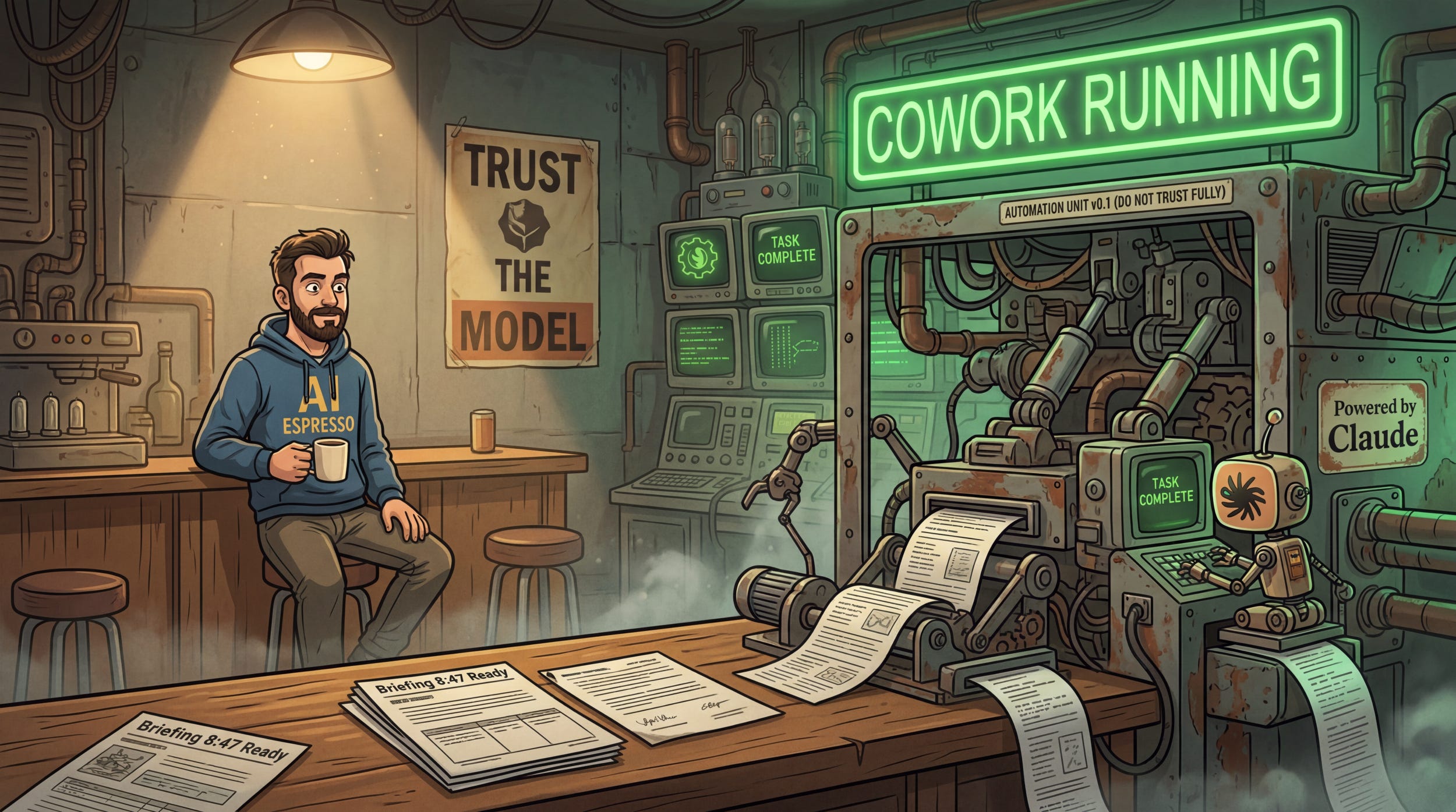
It’s 8:47 on a Tuesday morning.
You open your laptop.
On your desktop: a clean folder, a two-page briefing with everything you need to know today, and a competitive report on your main competitor, updated overnight.
You didn’t hire anyone. You didn’t work late. You didn’t open a single app.
You just left a message before going to sleep. And someone, something, did the rest.
Welcome to the counter.
Today I’m not serving you a regular espresso. I’m serving you 120 hours of distilled experience in a guide you can start applying today.
Because Cowork is not a Claude upgrade. It’s not “chat but with files.” It’s not a tool for tech nerds.
It’s the first time in history you can delegate real work to a machine, without writing a single line of code, without setting up anything complicated, without waiting for “AI to get a little better first.”
It’s already good enough. The problem is almost nobody knows how to actually use it.
This issue exists to change that. ☢️
💡 Thought of the Day
“The goal isn’t to automate everything. It’s to automate what you should never have to do yourself.”
🧪 AI in Action
I spent 120 hours with Cowork.
The first twenty I wasted using it like a regular chat. Typing questions. Waiting for answers. Wondering why it felt no different from what I already had.
The next hundred I spent figuring out how it actually works.
What follows is the distillate of everything I learned, no dead ends, no mistakes that cost me time, no learning curve that almost made me quit.
Four blocks. Each one builds on the last. By the end, you’ll know how to use Cowork better than 95% of the people who already have it installed.

#1 First Things First: What Cowork Is and How It Works
Let’s start from the beginning.
Cowork is not a new Claude feature. It’s not a plugin. It’s not a chat upgrade.
It’s an entirely different environment. And to use it, you need exactly one thing before anything else:
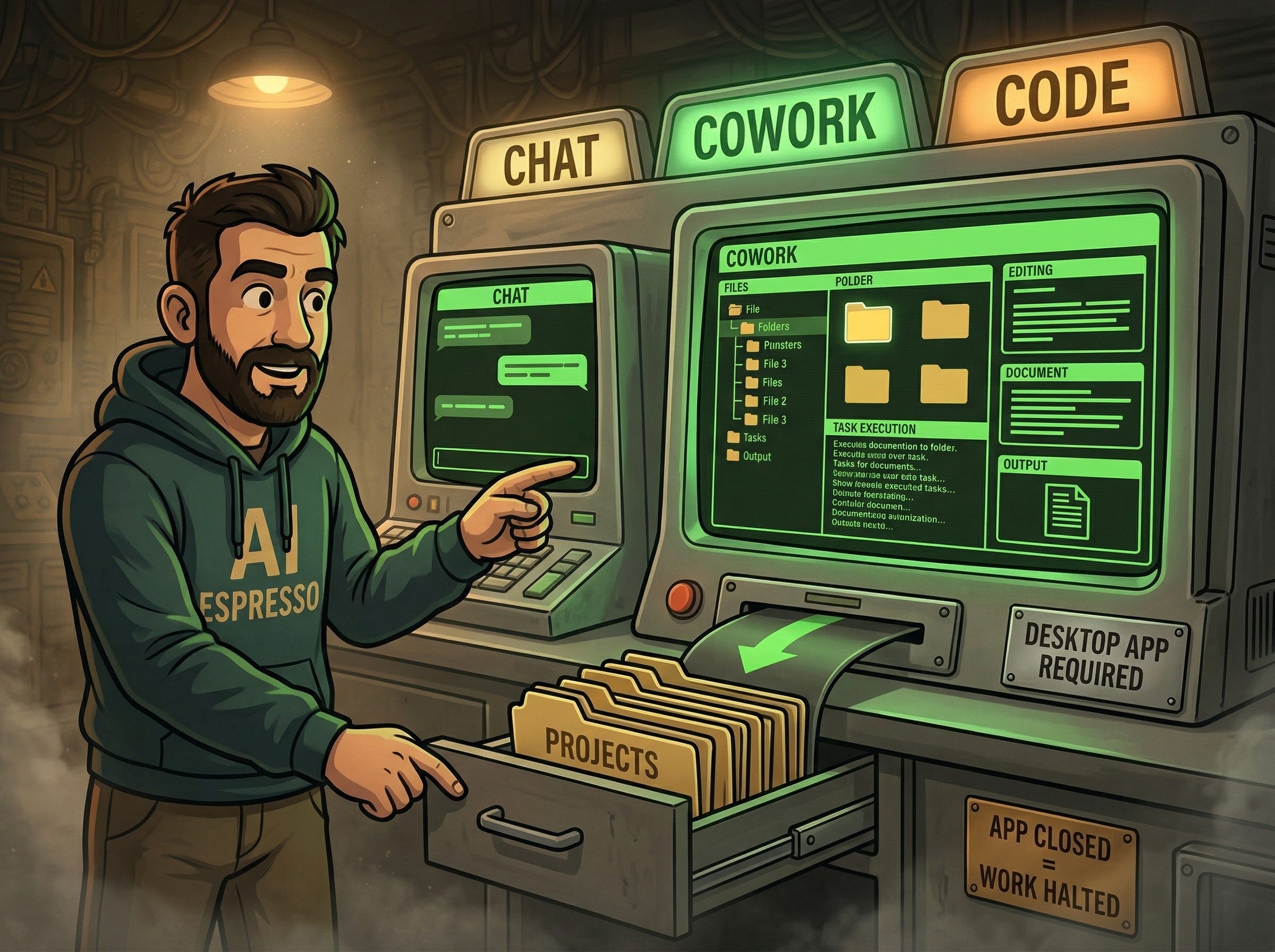
The Claude desktop app.
Not the browser. Not claude.ai open in Chrome. The app. The one you download and install on your computer.
Go to claude.com/download, download it, install it. Three minutes, tops.
Once it’s open, you’ll see three tabs at the top:
Chat, Cowork, Code
Click Cowork. You’re in.
How It Works in Practice
When you open a task in Cowork, the first thing it asks is simple:
“Which folder do you want me to work in?”
You select a folder on your computer. From that moment, Cowork can read, create, and edit the files inside it.
Only there. Only what you show it.
It doesn’t see the rest of your computer. It doesn’t access your documents without permission. It doesn’t do anything you haven’t told it to do.
Every significant action, moving a file, editing a document, deleting something, it shows you first before executing. You approve or block. Always.
Three Practical Things to Know Right Now
First: Cowork only exists in the desktop app. It doesn’t work in the browser. It doesn’t work from your phone in standard mode. You need the app open on your computer.
Second: the app needs to stay open while it works. If you close your laptop or quit the app, Cowork stops. Not a problem, it picks back up when you return. But it’s something to know before handing it a long task and going to sleep.
Third: everything it runs operates in an isolated environment. The code it uses doesn’t touch your operating system directly. It’s a technical safeguard. In practice it means: you can trust it, but start with non-critical folders until you understand how it moves.
The Difference That Changes Everything
In regular chat, Claude responds to you. It tells you what to do, writes you a draft, suggests an approach. Then you execute.
In Cowork, Claude executes.
You describe the objective, not the steps, the objective, and it builds a plan, follows it, produces real output. Actual files. Organized folders. Finished reports. Not text to copy and paste somewhere. Finished work, on your desktop, ready to use.
That’s the difference. Keep it in mind as you go.
#2 The Setup 90% of People Skip (and Then Complain About)
Fresh out of the box, Cowork is like hiring a brilliant new team member on their first day.
They can do everything. But they know nothing about you.
They don’t know your name, what you do, how you want things done, what your priorities are. Every time you open a task, it starts from zero. It produces generic output. You get frustrated. You think it’s overhyped.
It’s not overhyped. It’s just that nobody introduced you properly.
It takes thirty minutes, done once. After that, every session already knows everything that matters.
Here’s how.
Global Instructions: The First Place to Put Your Hands
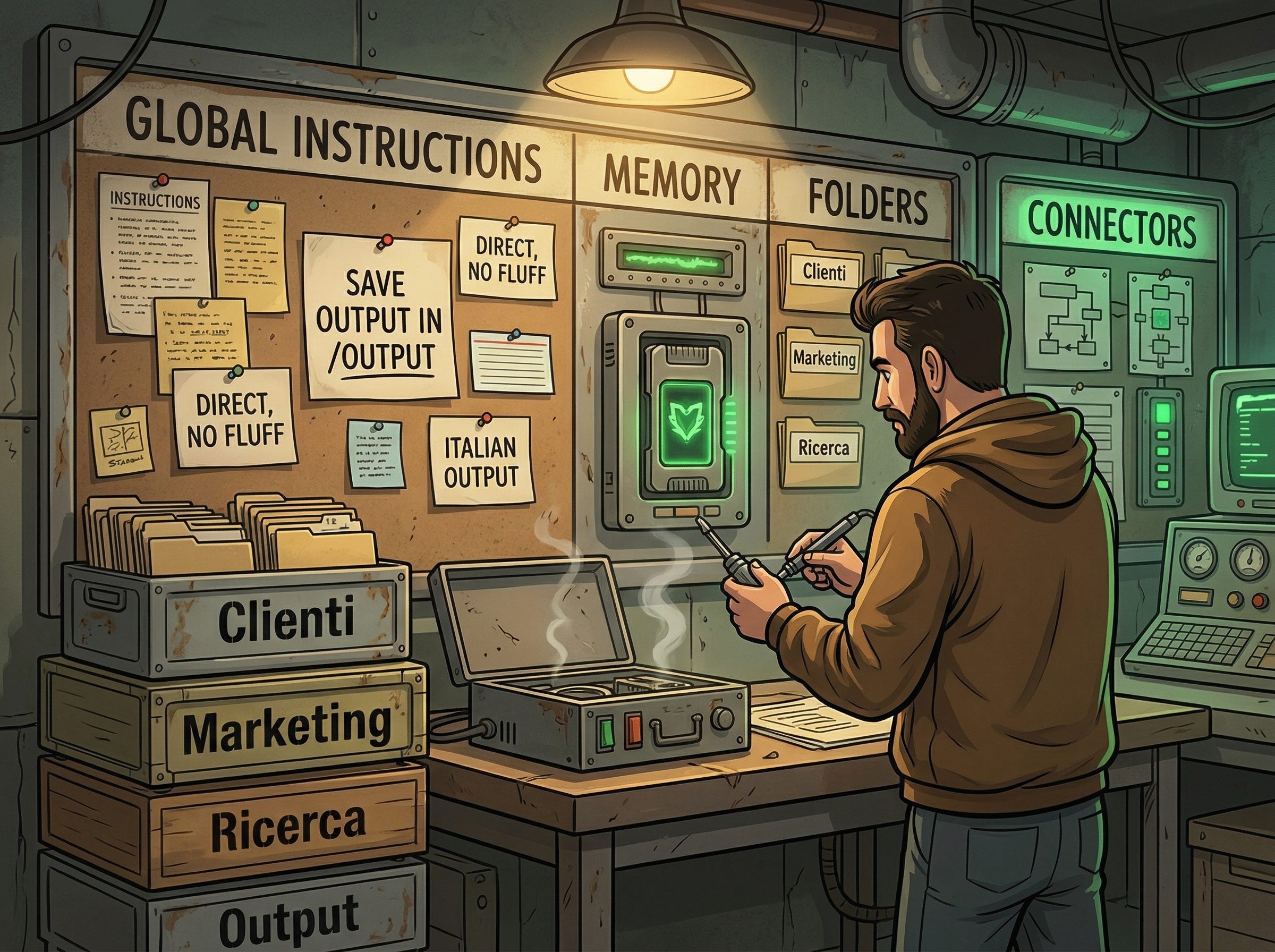
Open the desktop app. Go to Settings → Cowork → Global Instructions.
This is where you tell it who you are and how you want it to work.
No need for a novel. Five, six dense, specific lines is enough. Who you are, what you do, what kind of output you want, how you prefer it to communicate.
A concrete example:
“I’m a B2B marketing consultant. I work with small and mid-size businesses. I want direct output, no fluff. I prefer numbered lists for operational tasks and short paragraphs for reports. Always save files in the /Output folder with the date in the filename.”
From this point on, every task you open inherits this context. Claude no longer asks who you are. No more generic answers. It already knows how you want things.
Folders: What to Give It and What Not To
Cowork sees nothing of yours unless you show it.
Every time you open a task, you select the folder you want it to work in. Just that one. Just the files inside.
Practical advice: don’t give it access to your entire desktop on day one.
Build a simple structure. One folder per work area:
/Clients
/Marketing
/Research
/Output
Start with one. Understand how it moves. Then expand.
For folders you use often, you can also add Folder Instructions, context-specific instructions for that space. In the Clients folder you might write: “All reports in PDF. No sensitive data in filenames.” In Marketing: “Output always in English. Direct tone.”
Cowork reads them automatically every time it works in that folder.
The Trick Nobody Tells You: Import Your Memory from ChatGPT
If you’ve been using ChatGPT for months, that platform already knows a lot about you. Your industry. Your style. Your projects. Your preferences.
You don’t have to start from scratch with Claude.
Here’s what to do:
Open ChatGPT. Paste this exact prompt:
“List everything you know about me: my work, preferences, projects, communication style, goals.”
Copy the output it gives you.
Go back to Claude → Settings → Memory → Add to Memory. Paste everything.
From that moment, Claude has the context you built somewhere else. No more repeated explanations. No more cold starts.
Skills: A Note Worth Its Weight in Gold
If you read the issue on skills, you already know what I’m talking about.
In Cowork, skills aren’t called with slash commands like in Code. You use natural language: describe the objective in the task, and Cowork figures out which skill to activate.
That means every workflow you’ve already built becomes automatically reusable here too.
It’s a massive lever. In the Vault we go deep on how to structure them specifically for Cowork. For now, just know they work, and that it’s worth having them.
#3 The First 4 Tasks to Do Real Things Right Now
Theory’s over.
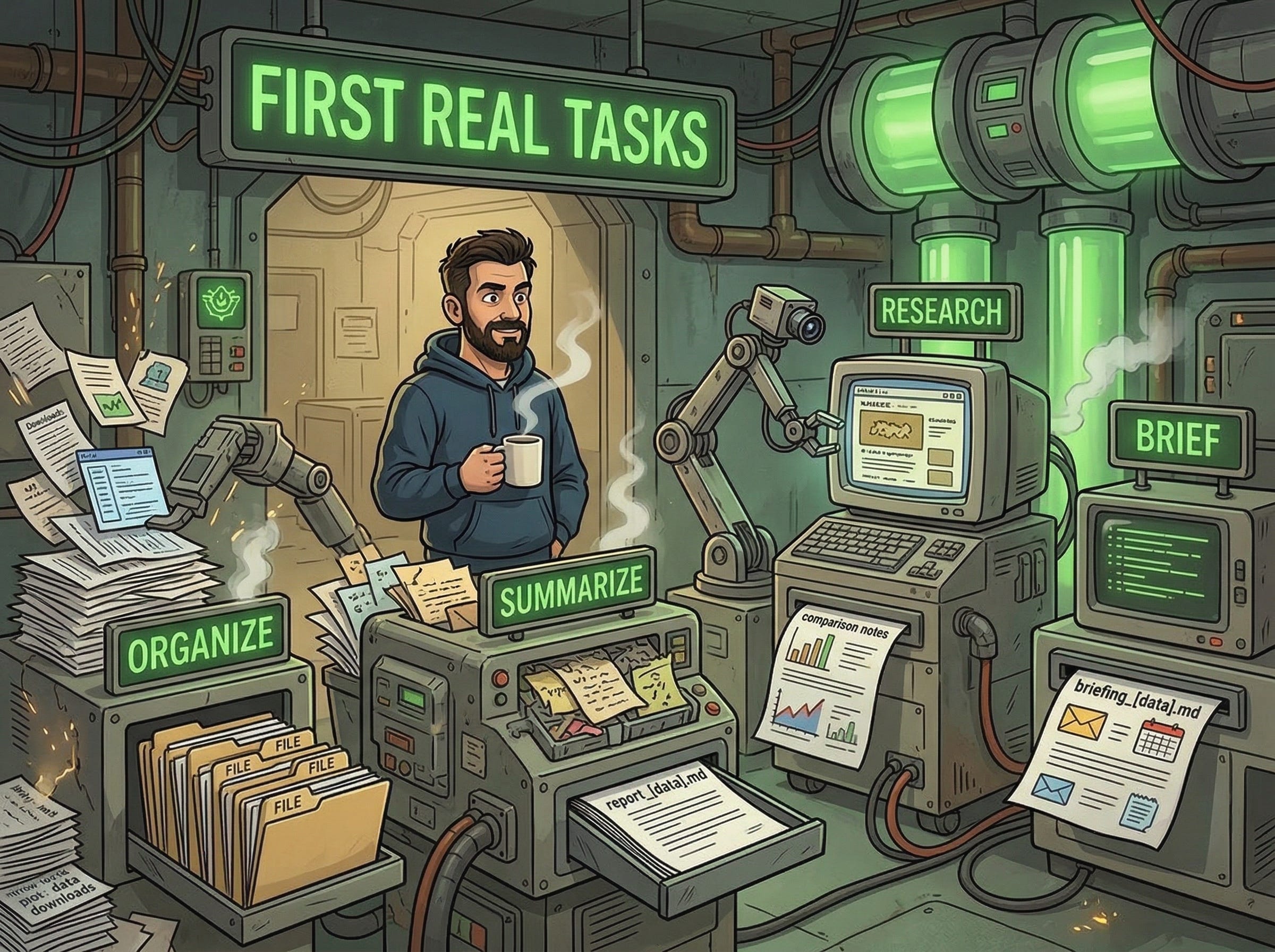
Here are four concrete tasks you can launch today. Each one is designed to show you something different about how Cowork thinks and works.
Start with the first one. Actually do it. One completed task is worth more than ten newsletters read.
Task 1: Organize Your Files
This is the classic starting point. Simple, visible, immediate.
Take your Downloads folder. Select it as the working folder in Cowork. Write this:
“Go into this folder. Read the contents of every file. Organize everything into logical subfolders based on content type, not file extension, actual content. Rename files with descriptive names. Tell me what you did and why before moving anything.”
Notice that last part: “tell me what you did before moving anything.”
It matters. Cowork shows you the plan. You approve. Then it executes.
The thing that surprises almost everyone the first time: Cowork doesn’t just look at the file extension. It reads inside. It understands that IMG_4521.png is actually a Stripe invoice. It puts it in the right folder.
That’s the leap beyond any automatic organization system you’ve used before.
Task 2: Build a Report from Scattered Notes
You’ve got notes everywhere. Scraps, drafts, text files, half-finished Word docs. Cowork reads all of them and builds something usable.
Create a folder. Drop everything you have on a specific project inside it, raw material included, incomplete stuff included.
Then write:
“Read all the files in this folder. Build a single, structured, coherent document. Identify the main themes, eliminate redundancies, flag the parts where information is missing. Save it as report_[date].md in the /Output folder.”
What comes back isn’t a summary. It’s a worked document, with structure, ready to refine. The dirty work, reading everything, connecting the pieces, cutting the noise, it already did that.
Task 3: Competitive Research with the Browser
This task shows something regular chat simply can’t do: Cowork opens the browser and navigates for you.
Write this:
“Go to [competitor name]’s website. Analyze: main headline, call to action, value proposition, clear strengths, visible weaknesses. Cross-reference with what you know about my business from the Global Instructions. Give me a list of three things they’re doing better than me and three opportunities they’re not using. Save the report in /Output.”
Cowork opens Chrome, loads the site, reads, analyzes, writes the report.
You do something else in the meantime.
When you come back, you have a competitive analysis ready. The kind that used to cost you an hour of manual work.
Task 4: Daily Briefing from Email and Calendar
This is the task you won’t want to turn off once it’s running.
First, connect Gmail and Google Calendar from settings: Settings → Connectors. Two clicks, standard OAuth authentication, thirty seconds.
Then write:
“Every morning I want a daily briefing. Read emails from the last 12 hours and flag only the ones that require a response or action from me. Read today’s and tomorrow’s calendar. Tell me what I have, who it’s with, and if there’s anything I need to prepare. Write everything in a file briefing_[date].md in the /Output folder. Direct tone, no fluff.”
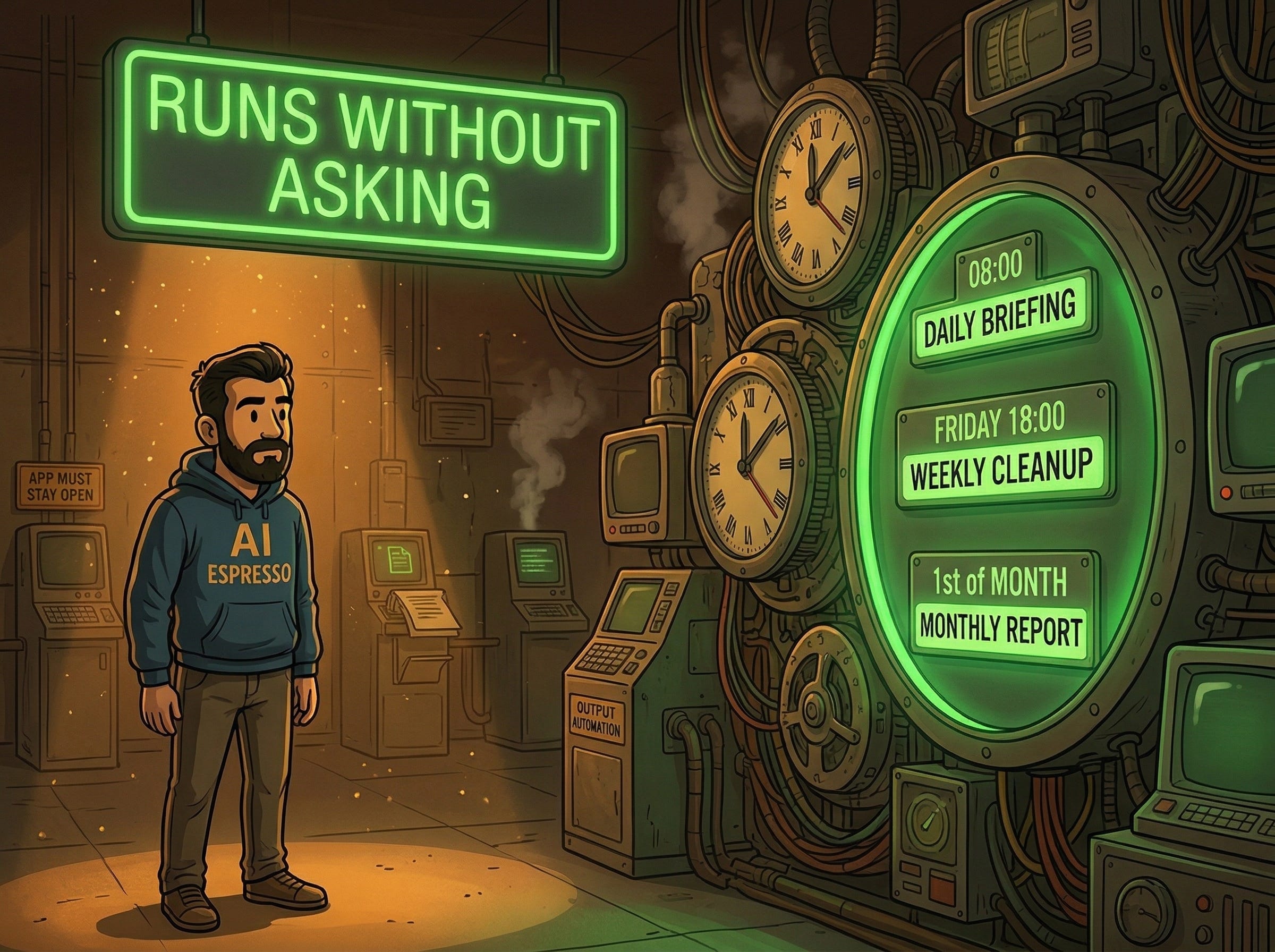
For now, run it manually. In the next block I’ll show you how to make it run on its own every morning at 8, without you opening anything.
#4 Scheduled Tasks: The First Time It Works Without You Asking
Up until now you’ve seen Cowork respond to your commands.
You write. It executes.
Scheduled tasks flip that dynamic.
You write once. It executes forever, every day, every week, every month, without you touching a thing.
This is the moment Cowork stops being a tool and starts being a collaborator.
How to Set It Up
Open a new task in Cowork. Write the task normally, exactly like you did in the four examples in the previous block.
Then, instead of hitting enter right away, type /schedule at the end of the message.
Cowork asks:
How often? (every day, every week, the first of the month)
What time?
Answer. Confirm.
Done.
From that point, the task runs on its own schedule. You stop thinking about it.
Three Tasks to Schedule Right Now
The morning briefing. You already wrote the prompt in Block 3. Schedule it for 8:00 AM every weekday. Every morning you open your laptop and everything you need to know is already there: important emails, calendar, priorities. No scrolling, no searching. One file, ready.
The weekly file cleanup. Every Friday at 6:00 PM: “Go to the /Downloads folder. Organize everything that came in this week into the correct folders. Delete duplicates. Give me a file listing what you moved and what you deleted.” The weekend starts with a clean desktop.
The monthly report. On the first of every month: “Go to the /Clients folder. Read all files updated in the previous month. Build a summary report: what was done, what’s still open, what needs attention. Save it as report_[month]_[year].pdf in /Output.” You get a full picture of the month without spending a single minute on it.
One Important Thing to Know
Scheduled tasks only work if the desktop app is open.
If your laptop is closed, Cowork can’t work.
In practice this means: keep it open overnight if you have tasks running at night, or schedule them for times when you know the computer is on.
If you open your laptop after the scheduled time, Cowork doesn’t skip the task. It runs it as soon as it can.
That’s a real limitation. Worth knowing before you hand it something critical.
📌 Espresso Prompt: Build Your First Cowork Setup
Here’s what I’d do: describe your work to Claude, and let it tell you exactly how to configure Cowork for your specific situation.
You are an expert in Claude Cowork configuration.
My goal is to configure Cowork in the most effective way possible for my specific work.
I'll describe what I do. You analyze it and give me a complete, personalized setup plan.
Here's my work:

Role/profession: [e.g. marketing consultant, founder, freelance designer]
Tasks I do every day: [e.g. reply to client emails, create reports, manage social media]
Tasks I do every week: [e.g. meetings, invoices, client updates]
Tools I use regularly: [e.g. Notion, Gmail, Google Drive, Slack]
The thing that wastes most of my time: [be specific]
The thing I hate doing but have to do anyway: [be honest]

Based on what I've told you, give me:
1. MY PERSONALIZED GLOBAL INSTRUCTIONS
Write the exact text to paste into Settings → Cowork → Global Instructions. It should reflect my role, my work style, and my specific goals.
2. THE FOLDERS TO CREATE
Tell me exactly which folders to create on my desktop and how to name them. For each one, write the Folder Instructions to use.
3. THE FIRST 3 TASKS TO SCHEDULE RIGHT NOW
For each one: task name, exact prompt to use, recommended frequency, recommended time.
4. THE CONNECTORS TO ACTIVATE FIRST
Based on the tools I use, tell me which connectors to activate immediately in Settings → Connectors and why.
Be specific. Give me stuff to copy and use, not generic advice.
☢️ Radioactive Humor
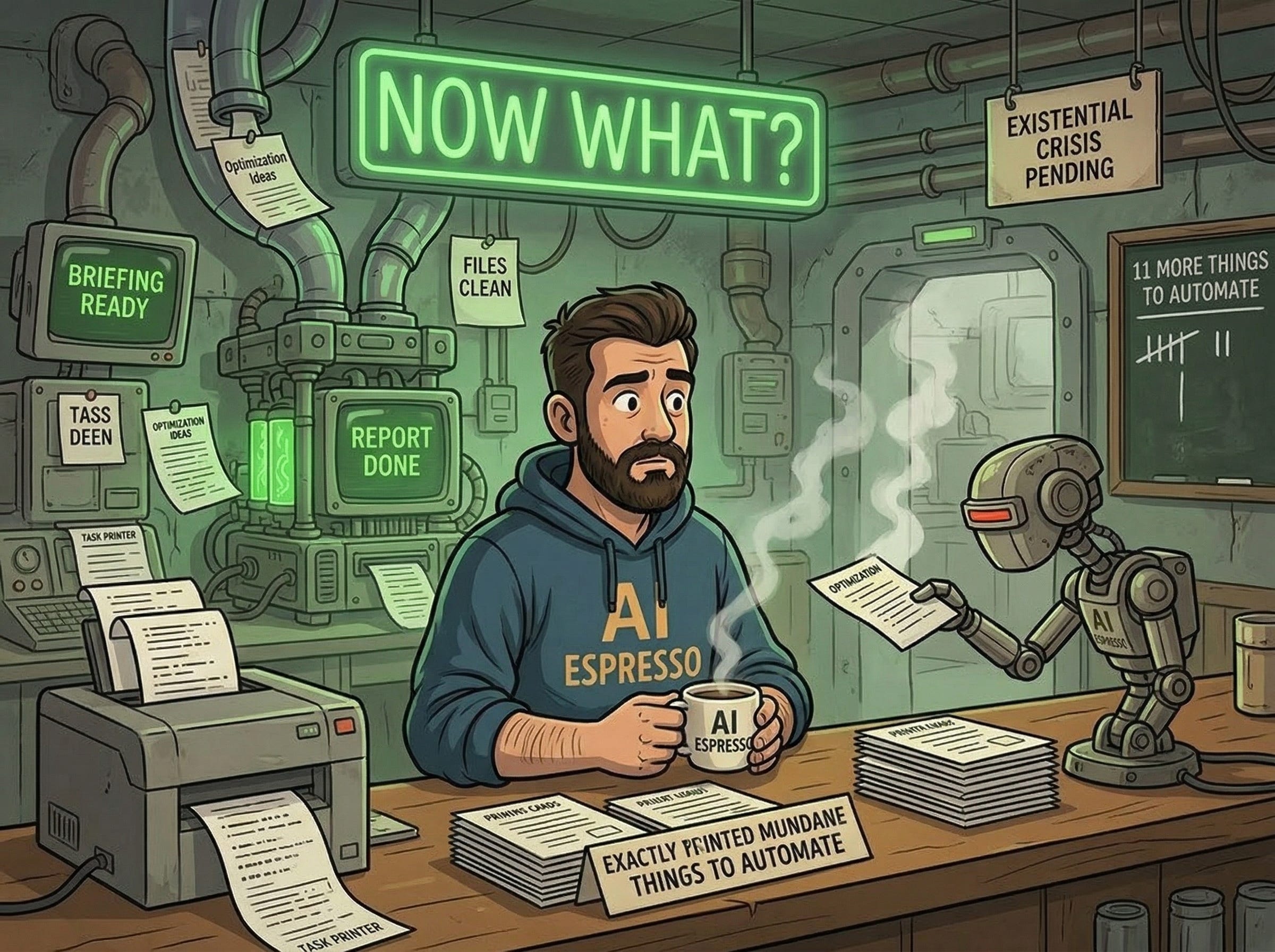
From the bunker log, Tuesday morning.
The Barista delegated his morning briefing to Cowork three weeks ago.
Week one: it works. He’s surprised. Week two: still works. He starts to trust it. Week three: he opens the laptop, reads the briefing, closes the laptop, makes himself another coffee.
The problem is the briefing was so good he had nothing left to do before 9 AM.
So he asked Cowork to find him more things to automate.
Cowork found eleven.
Now the Barista shows up at the counter at 10, handles the two things the machine still can’t do, and spends the rest of the time wondering what it means to work.
☢️ Anthropic assumes no responsibility for existential crises induced by excessive efficiency.

You made it this far.
You now know what Cowork actually is. You’ve configured the setup 90% of people skip. You’ve seen four concrete tasks to launch today. You’ve set up your first recurring automations.
You’re already ahead of most people who’ve had Cowork installed for weeks.
But there’s a massive gap between using Cowork and making it work at full capacity.
In the Vault edition, we go to the next level.
Chunked skills: why one giant skill doesn’t work and how to structure them so they run in Cowork without errors.
Plugins: what they are, how to build them, how to share them with a team.
Context rot: the silent error that degrades your output quality without you noticing, and how to avoid it.
Computer Use and Dispatch: Cowork opening apps, browsing sites, and taking instructions from your phone while you’re out.
And what I learned in 120 hours that you won’t find written anywhere else: the mistakes, the shortcuts, the patterns that actually work.
If you’re not in the Vault yet, you know where to find us.
☕ Matt
P.S. If you know someone still using Claude like a regular chat, send them this issue. It’ll change their week.